How to Segment Your Audience for Email Marketing: The 2026 Step-by-Step Playbook
If you are still sending the same email to your entire list, you are leaving money on the table — and annoying a large portion of subscribers who find your messages irrelevant. Learning how to segment your audience for email marketing is the single highest-leverage skill in your 2026 marketing toolkit. Segmented campaigns generate 760% more revenue than one-size-fits-all blasts, according to DMA research, yet fewer than half of email marketers segment beyond basic demographic fields. This playbook changes that.
We will walk through every step, from auditing your raw data to automating segment membership so your lists stay fresh without manual work. Whether you run an e-commerce store, a SaaS product, or a B2B service, the framework below applies — and you can start building your first segment today with whatever data you already have.
Prerequisites: What You Need Before You Segment
Segmentation fails when teams jump straight to building rules without checking their foundations. Before you touch a filter, confirm you have:
- A clean list. Remove hard bounces, invalid addresses, and duplicates. A dirty list produces misleading segment performance data.
- Consent records. Under GDPR and CAN-SPAM, you must send only to subscribers who have opted in. Your segmentation cannot fix a consent problem.
- At least one usable data field beyond email address. Even signup date is enough to create a recency segment. Purchase history, location, or engagement data unlock more sophisticated options.
- A platform with segment rules. This means any marketing automation tool that supports filter-based list creation — including open-source platforms like CampaignOS, which lets you build complex AND/OR segment rules without a per-contact pricing model.
If you need to set up your automation platform first, see our guide on how to set up marketing automation before continuing here.
Step 1: Audit Your List and Data Sources
Export your full subscriber list and open it in a spreadsheet. For every contact, note which data fields are populated and which are blank. You are looking for the coverage percentage of each field — any field with less than 30% population is too sparse to build a reliable segment from right now.
Common data fields and their typical coverage rates for most lists:
| Data field | Typical coverage | Segmentation use |
|---|---|---|
| Email address | 100% | Identity only |
| Signup date | 100% | Recency, onboarding stage |
| Last email open | 60–80%* | Engagement scoring |
| Last click | 30–50% | Intent signals |
| Purchase history | Varies | RFM analysis, upsell |
| Location (country) | 40–70% | Timezone, regional offers |
| Job title / industry | 20–40% (B2B) | Persona targeting |
*Open rate tracking is affected by Apple Mail Privacy Protection; click data is more reliable.
Circle the three to four fields with the highest coverage. Those are your segmentation building blocks for now.
Step 2: Define Your Segmentation Goal
Every segmentation project should serve one clear business objective. Teams that segment “because they should” produce segments nobody acts on. Pick one of these starting points:
- Re-engage cold subscribers. Goal: recover lapsed contacts before you prune them. Segment: subscribers with no opens in the last 90 days.
- Accelerate new subscriber activation. Goal: get new contacts to their first purchase or key action faster. Segment: subscribers joined in the last 14 days who have not converted.
- Upsell active customers. Goal: increase revenue per customer. Segment: contacts who have purchased once in the last 60 days.
- Reduce churn signals. Goal: identify and save at-risk customers. Segment: customers with a purchase more than 90 days ago and declining email engagement.
Write your goal in one sentence: “We are segmenting to [action] [segment] so that [outcome].” This sentence becomes your filter criteria in Step 5.
Step 3: Choose Your Primary Segmentation Criteria
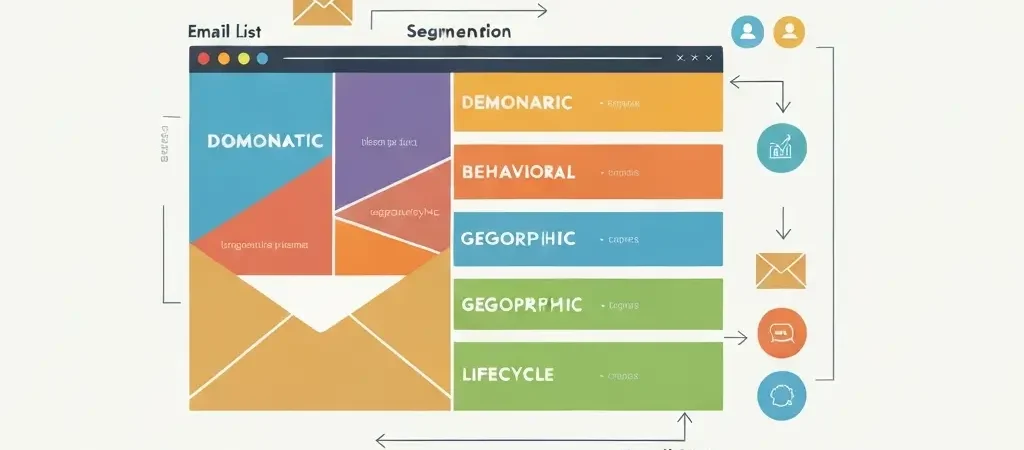
There are five main dimensions of email segmentation. You do not need all five — start with the one that maps to your goal and the data you have.
Demographic Segmentation
Uses fields like age, gender, job title, company size, or income bracket. Best for B2C consumer goods or B2B account-based campaigns. Limitation: demographic data goes stale fast and is often self-reported inaccurately.
Geographic Segmentation
Uses country, region, timezone, or language. Excellent for time-sensitive campaigns (flash sales, event invites) where send-time optimisation matters. Derive location from IP at signup if you don’t collect it explicitly.
Behavioral Segmentation
Uses actions: pages visited, emails opened, links clicked, products purchased, features used. This is the highest-ROI segmentation type because it reflects intent, not assumptions. Behavioral segments power automated workflows like abandoned cart, product browse retargeting, and feature adoption nudges.
Psychographic Segmentation
Uses interests, values, and lifestyle data — typically collected through surveys, quiz funnels, or preference centres. Harder to collect at scale, but produces the most resonant messaging. Effective for content-led businesses.
Lifecycle Stage Segmentation
Places contacts on a journey: Subscriber → Lead → First-time Buyer → Repeat Buyer → Advocate → Churned. Lifecycle segmentation ensures the right message reaches each contact at the right moment in their relationship with your brand. See our email list segmentation guide for higher open rates for concrete examples of lifecycle-based segments that improve deliverability metrics.
Step 4: Fill Data Gaps with Targeted Collection
If your audit revealed sparse data in the fields you need, run a targeted data-collection campaign before building complex segments. Three approaches that work:
- Preference centre email. Send a single-purpose email asking subscribers to update their preferences. Offer a clear value exchange: “Tell us what you care about so we can send you fewer, better emails.” Expect a 15–25% response rate among engaged contacts.
- Quiz or assessment funnel. A short three-to-five question quiz on your website or in a welcome email collects psychographic and interest data while providing value (e.g., “Find your automation maturity score”). This approach works especially well for SaaS and B2B audiences.
- Progressive profiling. Add one hidden field to each form on your site that rotates through the data fields you need. Over multiple interactions, you build a richer profile without overwhelming the subscriber at once.
Step 5: Build Segment Rules in Your Platform
With your goal defined and your data ready, open your marketing automation platform and create a new dynamic segment. The exact interface varies by tool, but the logic is consistent:
- Name the segment clearly. Use a naming convention: [Criteria]-[Value]-[Date]. Example: “Engagement-Active-Q2-2026”. Vague names like “Segment 3” create confusion at scale.
- Set your filter logic. Use AND for narrowing (contact must meet all conditions) and OR for broadening (contact meets any condition). A re-engagement segment might be: Last open date IS BEFORE 90 days ago AND Subscription status IS Active AND Total purchases IS GREATER THAN 0.
- Set segment type to dynamic. Dynamic segments update membership automatically as contacts meet or stop meeting your conditions. Static segments are a snapshot — useful for one-off campaigns only.
- Preview member count. Before saving, check the size. A segment of fewer than 50 contacts is too small for statistical significance. A segment covering 80%+ of your list is not really a segment — it is your whole list.
- Save and document. Keep a shared spreadsheet (or use your platform’s notes field) that records each segment’s goal, creation date, filter logic, and owner.
Step 6: Create Segment-Specific Content
A segment is only as good as the email you send to it. Do not recycle your standard template with a different subject line. For each segment, adapt at minimum:
- Subject line and preview text. Reference the specific situation: “It’s been a while — here’s what you missed” (re-engagement) versus “Welcome to your first week” (new subscriber).
- Opening paragraph. Acknowledge where the subscriber is in their journey. Personalization tokens (first name, last product purchased, signup date) take this further.
- Primary CTA. The action you ask for should be appropriate to the segment’s stage. Do not ask a new subscriber who has never purchased to “Upgrade to Pro.” Ask them to “Explore the getting started guide.”
- Offer or content block. Tailor the offer to the segment’s need. A first-time buyer segment responds to cross-sell recommendations. A churned customer segment responds to win-back discounts or a “what changed” update.
Good segmentation-driven personalization consistently lifts transaction rates by 6x compared to non-personalized emails, per Experian data. The investment in writing variant copy pays back quickly.
Step 7: Test Before the Full Rollout
Even well-constructed segments can produce surprises. Before you send to 100% of a segment:
- Send to a 10–20% sample (or an internal seed list) and review deliverability — check for bounce spikes or spam filter hits.
- Run an A/B test on subject lines within the sample. Pick the winner for the full send.
- Measure open rate, CTR, and unsubscribe rate 24 hours after the test send. If unsubscribes are above 0.5%, your segment definition or content needs adjustment.
- Check rendering across email clients. Segment-specific templates often include new blocks that may break on older clients.
Skipping this step is the most common reason segmentation projects damage sender reputation rather than improve it. Fifteen minutes of checking before a full send is far cheaper than the recovery time from a deliverability incident.
Step 8: Automate Segment Membership with Triggers
Manual segmentation — where a human periodically re-exports and re-imports lists — does not scale and is always out of date. The final step is to connect your segments to behavioral triggers so membership updates in real time.
Key trigger types to configure:
- Tag-based entry/exit. When a contact completes a purchase, add tag “Customer” and remove tag “Lead.” Your segment rules pick this up automatically.
- Date-relative rules. “Last activity date more than 60 days ago” recalculates daily. The contact enters the inactive segment automatically.
- Webhook events. Connect your e-commerce platform or SaaS app to your automation tool via webhook. A subscription cancellation event triggers a “Churned” tag and segment entry.
- Engagement scoring thresholds. Assign point values to opens (+1), clicks (+3), purchases (+10), and inactivity (-2/week). Contacts cross scoring thresholds and move between “Hot Lead,” “Warm Lead,” and “Cold” segments automatically.
Automated segment membership is the difference between a segmentation strategy that delivers results for months and one that requires weekly manual labour to maintain. Pair this with a robust workflow builder — the kind covered in our ecommerce marketing automation playbook — and your segments become self-managing.
For the technical side of content workflows at scale, tools like Authenova’s SEO automation guide cover how to systematically scale content operations alongside your email segmentation work — since both ultimately serve the same goal of delivering the right message to the right person.
Segment Types: Quick Reference Table
| Segment type | Data required | Best use case | Expected lift |
|---|---|---|---|
| New subscriber (0–14 days) | Signup date | Onboarding, first purchase | High |
| Active engagers | Opens/clicks in 30 days | Launches, upsells, surveys | High |
| At-risk / dormant | No opens 60–90 days | Re-engagement sequences | Medium |
| First-time buyers | 1 purchase in last 60 days | Cross-sell, loyalty intro | Very high |
| Repeat buyers (VIP) | 2+ purchases, high LTV | Exclusives, referral programs | Very high |
| Churned customers | Cancelled / no purchase 90+ days | Win-back campaigns | Low-medium |
| Geographic / timezone | Location or IP data | Time-sensitive promotions | Medium |
| Product interest | Browse / click category | Triggered product emails | High |
| High lead score | Engagement score ≥ threshold | Sales handoff, demos, trials | Very high (B2B) |
For a deeper dive into the personalization layer that sits on top of segmentation, see our email personalization strategies guide — it covers dynamic content blocks, merge tag best practices, and AI-driven personalization at scale.
Understanding how segmentation fits into broader content personalization is also explored in Authenova’s AI content generator mastery guide, which is relevant if you are scaling personalised content production in parallel with your segmentation rollout.
Frequently Asked Questions
How many segments should I start with?
Start with three to five segments maximum. Most teams see the biggest gains from a simple active/inactive split plus one behavioral segment such as recent purchasers. Complexity should grow with your data quality, not before it.
What is the minimum list size needed for segmentation to make sense?
Segmentation is worthwhile from as few as 500 subscribers. Below that, personalised one-to-one emails are more effective than formal segments. Above 500, even a two-way active/inactive split will produce measurable results.
How often should I update my segments?
Dynamic (rule-based) segments update automatically when contacts meet or exit the defined criteria. Static segments should be reviewed monthly. Engagement-based segments such as active/inactive should recalculate at least weekly to remain accurate.
Does segmentation improve deliverability?
Yes, significantly. Suppressing unengaged subscribers from active campaigns reduces spam complaint rates and improves your domain reputation with inbox providers. Many teams see a 10–20% improvement in inbox placement rates within four weeks of implementing engagement-based suppression segments.
What data is most valuable for email segmentation?
Purchase history and email engagement data — opens, clicks, and last activity date — consistently outperform demographic data in predicting conversion likelihood. If you can only collect two data points beyond email address, make them last purchase date and last click date.
Can I segment without a CRM?
Yes. Most email and marketing automation platforms — including open-source tools like CampaignOS — have built-in segmentation engines that do not require a separate CRM. For simple lists up to around 50,000 contacts, the native segment builder in your email platform is usually sufficient.
Ready to build your first segment?
CampaignOS gives you unlimited dynamic segments, visual workflow automation, and open-source flexibility — no per-contact pricing that penalises you for growing your list. Start segmenting today without the overhead of enterprise email tools.