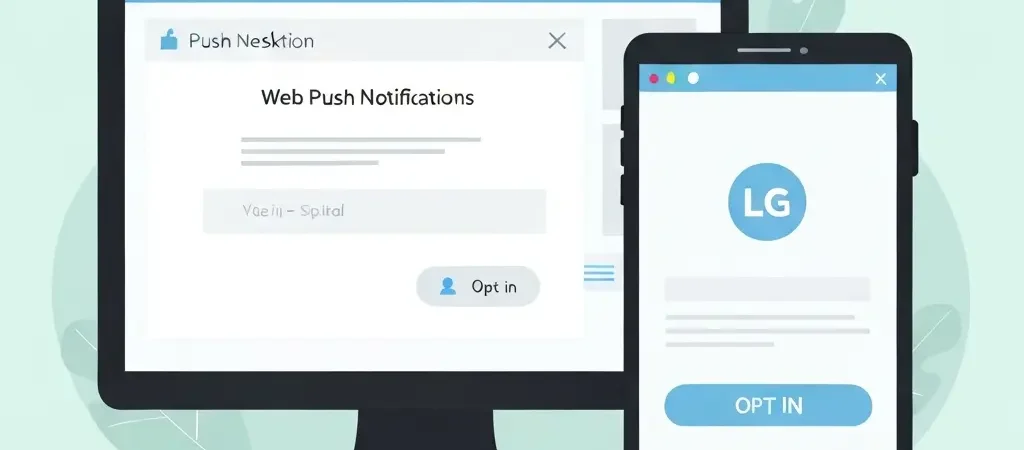
How to Set Up Push Notifications for Your Website in 2026
Web push notifications are browser-delivered messages that appear on a visitor’s desktop or mobile device — even when they’re not actively on your site. Knowing how to set up push notifications for your website gives you a direct, owned communication channel with a 5-10% average click-through rate: significantly higher than email (2-5%) because they appear as system-level notifications that users actually see.
Unlike email, push notifications require no email address — just a single click opt-in. This makes them valuable for reaching audiences who are resistant to email sign-ups and for time-sensitive communications where immediacy matters. Combined with email automation in a platform like CampaignOS, push notifications complete a multi-channel engagement strategy.
How Do Web Push Notifications Work?
Web push notifications use the browser’s Push API and Service Workers — small JavaScript programs that run in the background even when your website isn’t open. The flow:
- A visitor lands on your site and your opt-in prompt appears
- They click “Allow” — the browser registers a unique push subscription for that device
- The subscription is stored in your push notification platform
- When you send a notification, your platform sends it to the browser’s push server (Google for Chrome, Mozilla for Firefox, Apple for Safari)
- The browser’s push server delivers the notification to the subscriber’s device — even if the browser is closed (on most platforms)
Push notifications are supported by Chrome (75% of browser market share), Firefox, and Safari (iOS 16.4+ with web apps). Edge and other Chromium-based browsers also support them. This covers the vast majority of your audience.
Step 1: Choose a Push Notification Service
Several services provide the infrastructure for web push notifications:
| Service | Free Tier | Best For | Automation Features |
|---|---|---|---|
| CampaignOS (built-in) | Unlimited | Teams already on CampaignOS | Full workflow integration |
| OneSignal | 10,000 subscribers | Standalone push, mobile + web | Segments, A/B testing, automations |
| Pushwoosh | Limited | Multi-channel push (web + mobile) | Customer journeys, automation rules |
| VWO Engage | Limited trial | E-commerce push | Segmentation, cart abandonment |
If you’re already using a marketing automation platform that includes push, use that — unified subscriber data across email, push, and SMS in one system is significantly more powerful than separate point solutions.
Step 2: Install the JavaScript SDK
Most push notification services provide a JavaScript snippet to add to your website. Installation method depends on your platform:
WordPress:
- Use the service’s official WordPress plugin (most providers have one)
- Or add the snippet manually via Appearance → Theme File Editor → header.php before the
</head>tag - Or use a tag manager (Google Tag Manager) to deploy without touching code
Webflow, Squarespace, Wix:
- Go to your site settings → Custom Code / Head Code section
- Paste the provided script snippet
- Save and publish
Custom HTML/Next.js/React:
- Add the script tag in your
<head>section (or via your component’s useEffect hook for SPAs) - Register the Service Worker in your public directory as per the provider’s documentation
- Initialize the SDK with your app ID from the dashboard
After installation, verify the Service Worker is registered correctly using Chrome DevTools → Application tab → Service Workers. The Service Worker status should show as “activated and running.”
Step 3: Configure Your Opt-In Prompt
The opt-in prompt is the browser dialog asking “Allow notifications?” The browser-native prompt can’t be styled, but you can control when it appears and show a pre-permission prompt before it to improve opt-in rates.
Opt-in timing recommendations:
- Don’t show immediately on first visit — visitors have no context yet; wait until they’ve shown engagement
- Trigger after 30+ seconds on site OR after a significant action (second page view, scroll to 70% of article)
- Show a pre-permission “soft ask” — a custom banner/modal before the browser prompt that explains the value (“Get notified when we publish new guides”) increases native opt-in rates significantly
Soft ask best practices:
- State the clear benefit (“Get weekly marketing tips directly to your browser”)
- Use a single clear CTA button (“Yes, notify me”)
- Include a visible dismiss option — forcing the prompt creates resentment
- Target the soft ask to engaged visitors (time on site > 30 seconds, not a returning subscriber)
Industry average opt-in rate with immediate browser prompt: 5-8%. With a well-designed soft ask pre-prompt: 12-20%.
Step 4: Create Subscriber Segments
Segmentation for push notifications works differently from email — you typically have less data about push subscribers initially, but you can enrich it:
- Content category interest — if your site has multiple sections, track which categories a subscriber visits and segment accordingly
- Behavior signals — subscribers who visit frequently vs. those who subscribed once and haven’t returned
- New vs. established subscribers — trigger a welcome push notification workflow for new subscribers
- Device type — mobile push subscribers may need different message length and timing than desktop
- Email + push cross-segment — if using a unified platform, segment by subscribers who have both email and push, enabling cross-channel coordination
Step 5: Build Automated Push Workflows
Push notifications deliver the most value when automated around behavioral triggers:
Welcome Push Workflow:
- Trigger: new push subscription
- Action (immediately): Send welcome push — “Thanks for subscribing! Here’s our most popular resource”
- Wait 3 days
- Check: Have they visited the site since subscribing?
- If yes: No further action (they’re engaged)
- If no: Send “Here’s what you might have missed” push with recent content
Content Publishing Workflow:
When you publish a new article or product, automatically send a targeted push to the segment most likely to be interested (based on content category or past behavior). This replaces the manual “send notification on every publish” approach with intelligence.
Behavioral Re-Engagement Workflow:
- Trigger: Push subscriber hasn’t visited site in 14 days
- Action: Send re-engagement push (“We have 3 new guides you haven’t seen yet”)
- Track click-through
- If no click in 7 days: send one final push; if still no response, consider removing from active send list to protect engagement rates
Step 6: Measure Performance and Optimize
Key metrics for push notification performance:
- Opt-in rate — percentage of visitors who subscribe; benchmark is 5-15% depending on opt-in prompt design
- Click-through rate (CTR) — percentage of delivered notifications that are clicked; benchmark is 5-10% for web push
- Delivery rate — percentage of notifications that successfully deliver; should be above 90%; below that signals permission or technical issues
- Opt-out rate — percentage of subscribers who unsubscribe; above 2% per month signals over-frequency or irrelevance
Push Notification Best Practices
- Keep messages short — title under 50 characters, message under 100 characters for best display on all devices
- Include a clear CTA or hook — “New guide: [Title]” or “Your [product] offer expires in 24 hours”
- Use relevant images — 360x240px notification image increases CTR by up to 25%
- Frequency cap — no more than 1-2 pushes per week for most businesses; e-commerce can go higher for time-sensitive offers
- Time zone targeting — send pushes during recipients’ local business hours (9am-8pm)
- A/B test notification copy — small wording changes can produce 20-50% CTR differences
Frequently Asked Questions
Do I need HTTPS to use web push notifications?
Yes. Web push notifications require HTTPS — the browser’s Push API is only available on secure origins. If your site doesn’t have an SSL certificate, you need to add one (most hosting providers offer free Let’s Encrypt certificates) before implementing push notifications. This is a non-negotiable requirement, not an optional security upgrade.
Are web push notifications GDPR compliant?
Web push notifications require explicit opt-in (the user clicks “Allow” in the browser dialog), which satisfies GDPR’s consent requirement. You should also provide a clear way to unsubscribe (most browsers allow this through notification settings) and document the consent in your records. Include push notification data processing in your privacy policy.
How many push notifications should I send per week?
For content sites and B2B businesses: 1-3 per week maximum. For e-commerce with active promotions: up to 5-7 per week, but only if they’re genuinely time-sensitive and valuable. The clearest signal of over-sending is a rising opt-out rate. If unsubscribes exceed 2% per month, reduce frequency immediately.
Do push notifications work on iPhone?
Yes, but with requirements. Apple added support for web push notifications on iOS in iOS 16.4 (released March 2023), but only for websites that have been added to the user’s home screen as a Progressive Web App (PWA). Standard Safari browsing on iOS still doesn’t support push. This limits iOS push reach, but Chrome on Android (the majority of mobile web browsing) fully supports web push without any special setup.
What is the difference between web push and email for marketing?
Web push notifications are instant, browser-delivered, and appear even when the user isn’t on your site. Email requires an email address and lands in an inbox that may not be checked immediately. Push has higher CTR (5-10% vs. 2-5% for email) but lower reach (fewer opt-ins than email subscribers typically). They complement each other: use push for time-sensitive, short messages; email for detailed content and nurture sequences.
Can I personalize push notifications?
Yes. Advanced push platforms support dynamic content insertion (including the subscriber’s name if collected), segmentation-based targeting (send different notifications to different subscriber groups), and behavioral personalization (sending notifications based on what the subscriber has viewed or purchased). Basic personalization requires collecting subscriber data beyond the push subscription itself.
How do I integrate push notifications with my email marketing?
The cleanest integration is using a platform that handles both email and push from one system — like CampaignOS. This gives you a unified contact profile where you can see email and push engagement together, and build cross-channel workflows (e.g., send email first; if not opened in 3 hours, send push notification). If using separate tools, connect them via API or Zapier to sync subscriber data and coordinate send timing.
What should I include in a push notification to maximize clicks?
The highest-performing push notifications have: a clear, specific title that sets expectations (not generic “Check this out”), a body text that expands on the value (“Your exclusive guide to email automation is ready”), an image that visually reinforces the message, and a deep link that takes the user directly to the relevant content (not just your homepage). Urgency or exclusivity in the copy (“Offer expires in 24 hours” or “New for subscribers only”) consistently improves CTR.
Add Push Notifications to Your Multi-Channel Stack
CampaignOS integrates web push notifications alongside email and SMS automation in one unified platform. Coordinate push notifications, email sequences, and behavioral workflows with shared contact data and a single workflow builder.